
Although ChatGPT only became available to the general public in 2022, a world without AI is already hard to imagine. I also use AI extensively in my daily workflow. In this article, I’ll tell you what I use AI for.
ChatGPT, Gemini, Claude, Grok…
ChatGPT was the first AI that really made an impact, but by now there are many more AI tools available, such as Google’s Gemini, Claude and Elon Musk’s Grok.
For me personally, the saying “the first is the best” applies, although ChatGPT can obviously no longer be compared to the version from 2022. Back then, you could basically only have it write texts and answer questions. Nowadays, ChatGPT can examine live websites, generate images, write code and much more.
Generating images
I use AI a lot to generate images, and ChatGPT is really good at it. I do have a Plus subscription though, because otherwise you have a limit of only 2 or 3 images per day. With the Plus subscription, I haven’t run into the limits yet.
Before I had the Plus subscription, I used Gemini to create images. Its limits are much more generous, but the quality is considerably lower than ChatGPT.
Besides generating new images, ChatGPT is also quite good at editing existing images. There are several tools available that allow you to make very specific changes to individual details.

For example, you can click on a specific detail and describe what needs to be changed, or brush over an area that needs to be removed. You can also remove the background from an image.
But don’t be mistaken: you usually spend quite a bit of time before an image is completely perfect. Of course, that also depends on how critical you are.
Writing code
I’m a web designer, but I’m not a developer. I can write and understand HTML and CSS perfectly well, but I can’t write PHP, JavaScript or other code. And yet nowadays I can create completely custom plugins or advanced functionality — and with “I”, I mean AI 😉
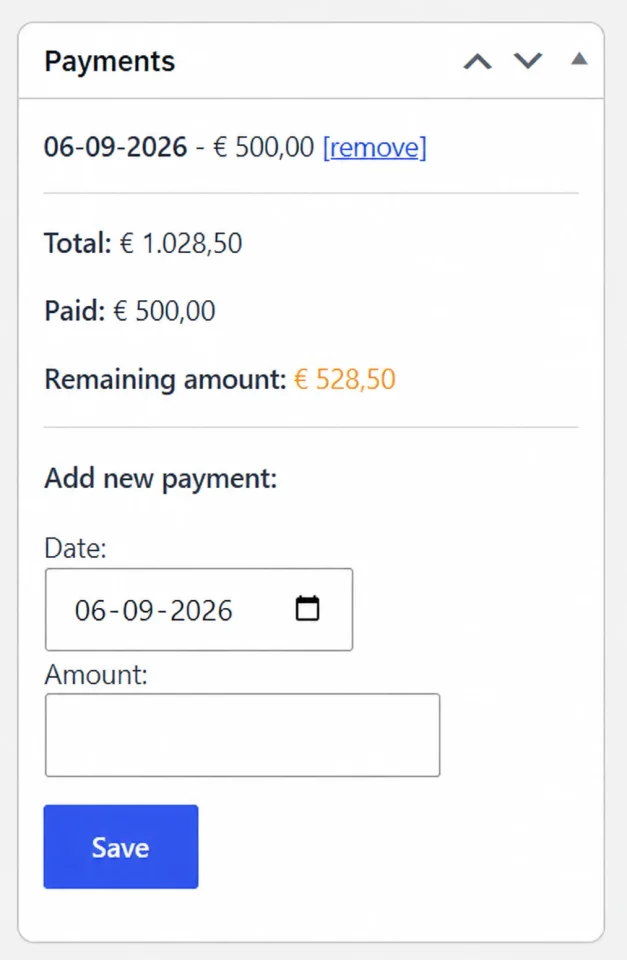
For example, I created a plugin that allows me to add partial payments to WooCommerce. I can enter the date and amount of a partial payment, after which the remaining amount is calculated automatically. The order overview also shows the totals of the amounts already paid and still outstanding.
I also created this (Dutch) website for corporate events. On the first two tabs, visitors can select one specific package. On the third tab, visitors can choose multiple options. The fourth tab contains a quotation form that lists all the choices made in the previous tabs. When the customer enters the number of guests, the total price and price per person are calculated automatically. All of this was built using an extensive JavaScript script created by ChatGPT.
The same applies to other functionality. When you click on a card, you automatically scroll to the button, which is also animated. When you click that button, you automatically move to the next tab, which then scrolls neatly to the top of that tab.
Investigating and solving problems
With a Plus subscription, ChatGPT can also open live websites and even perform actions on them. The script on the website mentioned above didn’t work perfectly on the first attempt either, and ChatGPT was able to click the cards and buttons, analyse the code and errors and solve the problem.
I’ve also had to deal with a very persistent malware infection that kept coming back. That website turned out to be hosted on one hosting account together with several other websites, which kept reinfecting each other. With the help of ChatGPT, I was able to use an SSH script to investigate and clean all the websites at the same time. It still took a few hours, but without AI I would never have managed it.
Writing texts
Every now and then I also use AI to write texts, although that’s something I usually still do myself. This article, for example, was written entirely without AI. Impressive, right? 😀
Translating is another story though; I originally published this article on my Dutch website and let ChatGPT translate it. It also translated all the text on my images.
Tips for using ChatGPT / AI
- Be specific. Tell AI exactly what you want it to do. Like in the image above: “make this backdrop 25% smaller”.
- Sometimes it’s also necessary to tell it what you don’t want. “Don’t change anything else about this backdrop”, for example, to prevent the entire image from being altered as well.
- Check the result carefully. In the image above, for example, there are two men on the left and right who look almost identical. That obviously isn’t very believable. The platter of Dutch snacks doesn’t look like a normal bittergarnituur either.
- If the result isn’t what you asked for, enter: “Did you do what I asked?” ChatGPT will then analyse its actions and usually figure out what it did wrong.
- Don’t be afraid to be critical. Although AI behaves like a human, it is of course simply a machine without feelings. So it isn’t going to sit in a corner crying if you give it a telling-off 😉 Instead, it will almost always say something along the lines of: “You’re right, sorry, I’ll fix it / I’ll do better next time.”

Leave a Reply